Official ergonomics checks
RV workspaces are compromises, but the same workstation principles still apply: position the screen, input devices, seating, and lighting so the body is not compensating all day.
Pre-arrival checks
Before buying accessories
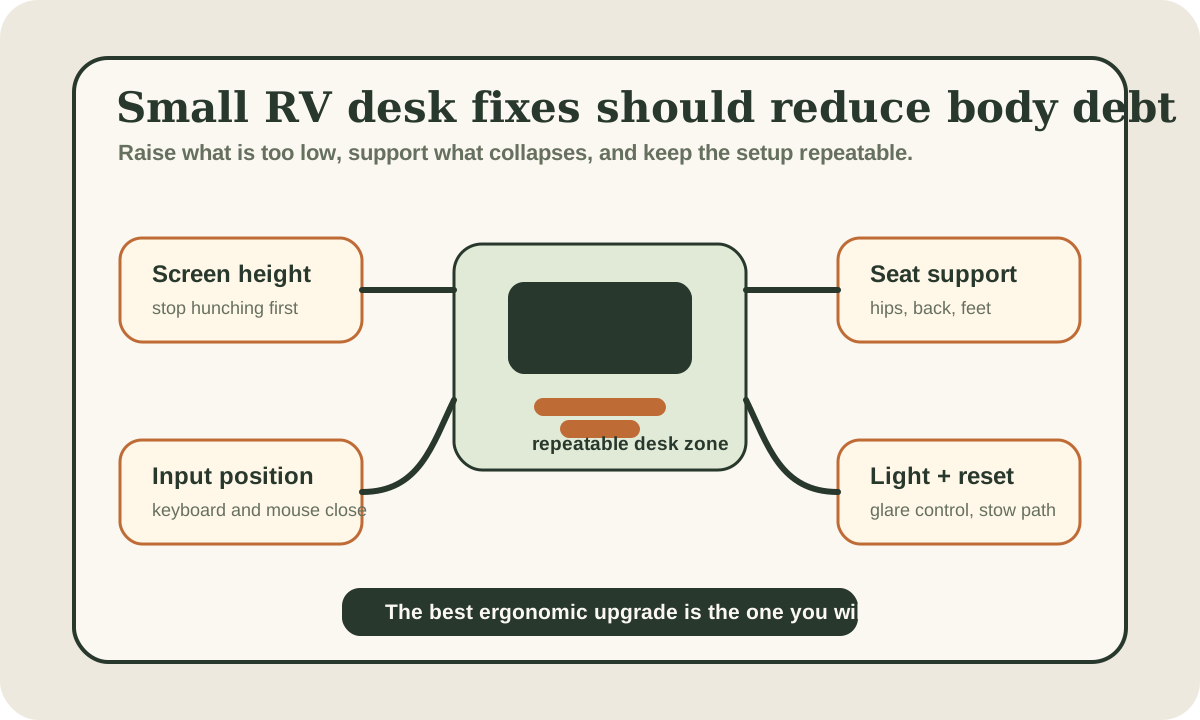
Test whether screen height, input position, seat support, lighting, and reset friction are the actual pain points.
RV ergonomics should be judged by sustainability
An RV office does not need to look like a studio desk. It needs to let you work without accumulating neck, shoulder, wrist, back, and eye strain faster than the workday can tolerate.
That means judging the setup by practical questions:
- Can you work for a focused two-hour block?
- Does the setup still feel decent by day four?
- Can the space reset without a daily fight?
- Does the fix travel well?
- Does it block cabinets, beds, walkways, or normal living?
If you are still building the whole office, start with the RV office setup guide. Ergonomics work best when they are part of the workspace plan, not a rescue attempt after the layout is already fighting you.
The small-space ergonomics table
Compare
RV desk ergonomics fixes
Use one comparison matrix to scan the practical differences. Small screens stack each row; wider screens keep the first column pinned.
| Spec | Laptop-only setup | Laptop plus compact accessories | Dedicated RV work zone |
|---|---|---|---|
| Best fit | Short tasks and occasional work | Most regular remote workers | Daily work, long calls, or full-time use |
| First fix | Raise the screen for longer sessions | Laptop stand plus keyboard and mouse | Screen height, seat, power, light, and storage all planned together |
| Main risk | Neck and wrist strain | Gear clutter if storage is vague | Permanent setup that blocks living space |
| Comfort check | Can you work 30-60 minutes without hunching? | Can you work 2-4 hours and reset fast? | Can you repeat the setup for a full week? |
| Best next read | Office setup guide | Video-call guide | Remote-work floorplan guide |
Fix screen height first
The screen-height problem shows up fast in RVs because so many work surfaces are built for eating, not typing all day.
If the screen is too low, the neck and upper back pay for it. If the screen is too far away, you lean. If glare makes the screen hard to see, you twist and hunch without noticing.
A simple improvement often looks like:
- laptop raised on a stable stand
- compact external keyboard
- mouse or trackpad close to the body
- screen positioned so you are not constantly looking down
- work surface cleared enough that arms are not squeezed
You do not need a permanent monitor arm for every rig. You do need to stop pretending a laptop flat on the dinette is a full-day workstation.
Keyboard and mouse position matter more than people expect
Raising the laptop helps the neck, but it can make the wrists worse if you keep typing on the raised laptop keyboard.
That is why a separate keyboard and mouse are often the highest-value ergonomic accessory pair in an RV. They let the screen move up while the hands stay closer to a relaxed working position.
In a small rig, choose accessories that:
- store together
- connect reliably
- do not need a permanent desk
- can be placed close enough to avoid reaching
- do not create a cable nest every morning
The goal is less strain, not more setup drama.
Do not fix your neck by sacrificing your wrists
Raising the laptop is useful only if your hands still land somewhere comfortable. If the laptop goes up, the keyboard usually needs to come down.
Seating support is the real RV constraint
RV seating is often the weak link. Dinette cushions, swivel seats, sofas, and beds were not all built for focused work.
Before buying a desk accessory, test the seat:
- Are your hips supported?
- Can your feet rest solidly?
- Does the backrest help or collapse you?
- Are you perched, twisted, or reaching?
- Can you stay there without shifting every five minutes?
Small supports can help: a firm cushion, lumbar roll, foot support, or using a different seat for longer work blocks.
The best-looking workspace loses if the seat makes you hate working by lunchtime.
Light and glare are ergonomic problems
Lighting is not only a video-call issue. It changes posture.
If the window behind the laptop is too bright, you lean. If the side light creates glare, you twist. If the screen is dim against desert sun, you hunch closer.
Test the workspace at the times you actually work:
- morning sun
- afternoon glare
- evening task lighting
- cloudy-day darkness
- video-call lighting
Sometimes the fix is as simple as a shade, curtain, task light, or moving the call position. Sometimes the fix is choosing a different desk zone entirely.
Breaks and position changes are not optional polish
No small RV setup should be expected to hold one perfect posture for eight hours.
Build movement into the day:
- alternate between call position and focus position
- stand for short admin tasks if the rig has a safe surface
- take screen breaks when the connection or workflow allows
- reset shoulders and wrists before discomfort becomes the day's theme
This is not productivity theater. In a compromised workspace, position changes are part of making the setup sustainable.
Match the fix to the rig
Van or small Class B
Favor light, stowable gear: laptop stand, compact keyboard, mouse, small cushion, task light, and one pouch. Anything permanent must earn its footprint.
Travel trailer or Class C
You may have room for a repeatable dinette or bunk-office setup. The challenge is storage discipline: monitor, stand, keyboard, and cables need a real home.
Fifth wheel or motorhome
A dedicated work zone can make sense, but do not let space hide poor ergonomics. A real desk with a low screen, bad chair, glare, or cable clutter still needs correction.
If you are choosing a rig around work, use the remote-work floorplan guide before assuming a brochure desk will work for your body.
A five-minute ergonomic audit
Sit down as if the workday has started.
Check:
- Are your shoulders relaxed?
- Is your head mostly upright?
- Are your wrists neutral?
- Are your feet supported?
- Is the screen readable without leaning?
- Is glare forcing posture changes?
- Can the setup be put away cleanly?
If a fix fails item seven, it may still be useful, but it is not finished. Reset friction is part of RV ergonomics because the office shares space with the rest of life.
Call-day ergonomics need a separate check
Video calls can quietly break a decent desk setup.
The camera angle may tempt you to lower the screen. The light may push you toward a worse seat. A headset cable may pull the laptop closer than usual. A background that looks better may put your body in a worse position for an hour.
Before recurring calls, test the call setup separately:
- camera at a usable angle without hunching
- light controlled without twisting toward the window
- microphone or headset placed without cable strain
- notes reachable without leaning across the table
- backup power close enough that charging does not change posture
If calls are a big part of the workday, pair this with taking video calls from an RV. The most professional-looking call position is not the best one if it leaves your neck angry by lunch.
Power and ergonomics overlap
Power planning sounds separate from posture, but in a small RV the cable path can decide how you sit.
If the only outlet is behind the seat, the laptop may live in the wrong place. If the inverter has to stay close to one cabinet, the monitor may drift too far away. If the router needs a window, the desk may follow the signal instead of the body.
That is why ergonomic fixes should be checked against the remote-work power budget and the battery calculator. A good workspace needs enough energy, but it also needs the energy path to stop pulling the body into bad positions.
Final thought
RV desk ergonomics are about making the mobile workspace feel more human.
Raise what is too low. Support what collapses. Reduce glare. Keep input devices close. Move often enough. Store the setup so tomorrow does not start with clutter.
That is not glamorous. It is the kind of ordinary comfort that lets remote work stay possible on the road.
Frequently asked
Questions RVers usually ask next.
What is the best first ergonomic fix for an RV desk?
For many RVers, the best first fix is raising the laptop or screen and adding a separate keyboard and mouse. That reduces neck strain without forcing the hands into an awkward raised position.
Do I need a dedicated RV office to have good ergonomics?
No. A small, repeatable setup can work well if screen height, input position, seating, lighting, and reset are handled. A dedicated desk helps only if it actually supports the body and the daily routine.
Why does lighting matter for RV desk ergonomics?
Glare and poor visibility make people lean, twist, and squint. Fixing light direction, shade, or task lighting can improve posture even if the furniture does not change.
How do I keep ergonomic gear from cluttering the RV?
Choose compact gear that stores together and has a fixed home near the workspace. If the setup cannot reset cleanly, it will eventually become part of the comfort problem.
Freshness note
Last checked April 21, 2026
This topic can change when products, plans, prices, campsite rules, or fit guidance move. These notes show what was reviewed most recently.
This review included
- Checked OSHA computer workstation guidance for screen, keyboard, mouse, seating, and lighting principles.
- Checked NIH computer workstation ergonomics guidance for small adjustments, posture, breaks, and workstation fit.
- Expanded the guide with an ergonomic adjustment visual, official source grid, setup table, and rig-specific workspace examples.
Recent change log
April 21, 2026
Expanded the RV desk ergonomics guide with official source checks, a custom adjustment visual, setup scenarios, and practical small-space fixes.
April 17, 2026
Published RV desk ergonomics guide with current product pricing and availability.
Broader editorial corrections are tracked on the Corrections and Updates page.